 Are you tired of hearing how "simple" it is to deploy apps with Docker Compose, because your experience is more one of frustration? Have you read countless blog posts and forum threads that promised to teach you how to deploy apps with Docker Compose, only for one or more essential steps to be missing, outdated, or broken?
Keep in mind, as you're reading through this list, that you can combine most of these options as well as using them individually.
1. Condense log output down to one line
Option Syntax: --oneline.
I use this option (I think) most every time I use Git Log.
If you're not familiar with it, it's a shorthand for git log --pretty=oneline --abbrev-commit; here's what those options do.
--abbrev-commit
Instead of showing the full 40-byte hexadecimal commit object name, show a prefix that names the object uniquely.
--abbrev=<n>(which also modifies diff output, if it is displayed) option can be used to specify the minimum length of the prefix. This should make--pretty=onelinea whole lot more readable for people using 80-column terminals.
--pretty[=<format>], --format=<format>
Pretty-print the contents of the commit logs in a given format, where
<format>can be one of "oneline", "short", "medium", "full", "fuller", "reference", "email", "raw",format:<string>andformat:<string>. When<format>is none of the above, and has%<placeholder>in it, it acts as if--pretty=tformat:<format>were given. See the "PRETTY FORMATS" section for some additional details for each format. When=<format>part is omitted, it defaults to medium.
The --oneline option drastically shortens the default Git Log output to just the bare essentials.
Specifically, it prints out a single line for every commit, consisting of the commit's 7-character commit hash and the title of the commit message.
If the commit was part of a tag, merge, rebase, etc, that information is included as well.
You can see some example output below.
75816ae (HEAD -> fix-bug-in-published-item-filter-iterator, origin/main, origin/HEAD, main) Merge pull request #37 from settermjd/fix-config-cache-bug
d42148b (tag: 2.2.3, origin/fix-config-cache-bug, fix-config-cache-bug) Use the new custom Twig RuntimeLoader to load Markdown support
3b3fa7b Add a custom Twig RuntimeLoaderInterface class
5aebf4c Fix up the default path configuration
09ea39c Add samdark/sitemap as a required package
349e036 (tag: 2.2.2) Merge pull request #36 from settermjd/finish-implementing-pagination
9cb199b (origin/finish-implementing-pagination, finish-implementing-pagination) Finish implementing pagination
b7f4c0f Merge pull request #35 from settermjd/rename-php-qa-github-workflow
2066ee7 (origin/rename-php-qa-github-workflow) Update the name of the GitHub QA workflow
9c424d4 (tag: 2.2.1) Merge pull request #34 from settermjd/update-the-default-configuration
bec49e7 (origin/update-the-default-configuration) Update the README to be better formatted
38b924a Add items per page to the blog configuration
Compare this, rather succinct output, to just running git log, which would have produced the following (truncated for readability and article length):
commit 75816aee8a75da8be5d3f53c7db10789fd2622fe (HEAD -> fix-bug-in-published-item-filter-iterator, origin/main, origin/HEAD, main)
Merge: 349e036 d42148b
Author: Matthew Setter <matthew@matthewsetter.com>
Date:   Fri Nov 21 22:39:42 2025 +1000

    Merge pull request #37 from settermjd/fix-config-cache-bug

    Fix config cache bug

commit d42148b77671b03cba66e6abf5ab9f14699d1015 (tag: 2.2.3, origin/fix-config-cache-bug, fix-config-cache-bug)
Author: Matthew Setter <matthew@matthewsetter.com>
Date:   Fri Nov 21 22:26:52 2025 +1000

    Use the new custom Twig RuntimeLoader to load Markdown support

    This change removes the previous anonymous class replacing it with the
    custom RuntimeLoader class so that config-cache.php will be generated
    properly when the package is used in Mezzio applications.

commit 3b3fa7be4f9ead0c2a57a1e12cb611c62acb22ec
Author: Matthew Setter <matthew@matthewsetter.com>
Date:   Fri Nov 21 22:23:31 2025 +1000

    Add a custom Twig RuntimeLoaderInterface class

    This class is a custom Twig RuntimeLoaderInterface class for loading the
    MarkdownRuntime. It's required so that Markdown support is available in
    Twig, when required. The anonymous class implementation that I used
    previously, for an as yet unknown reason, caused
    data/cache/config-cache.php to break with the following error:

    PHP Parse error: syntax error, unexpected token "@", expecting "]" in
    /app/data/cache/config-cache.php on line 200

    If you look in the file, you'll see the following at that line:

    \Twig\RuntimeLoader\RuntimeLoaderInterface@anonymous^@/app/config/autoload/twig.global.php:24$d,

commit 5aebf4c0959ea1b5b9be5d5de3212dc344954e58
Author: Matthew Setter <matthew@matthewsetter.com>
Date:   Fri Nov 21 22:20:04 2025 +1000

    Fix up the default path configuration

    This change fixes the original configuration so that it points at the
    correct directory path, when installed in a Mezzio application.
The first example is much easier and quicker to scan and figure out if you need to dive deeper into any one of those commits.
2. Trace the evolution of a line range
Option Syntax: -L<start>,<end>:<file>, -L:<funcname>:<file>
This option:
Traces the evolution of the line range given by
<start>,<end>, or by the function name regex<funcname>, within the<file>.
In short, it limits the commits displayed to just those that affect the lines in the file(s) that you're interested in.
Let's say that line seven of src/ViewLayer.php in your repository stands out to you.
To trace its evolution, you could use the -L option, as follows:
git log -L5,10:src/ViewLayer.php
While you were specifically interested in line seven, by showing the evolution of a few lines before and after the specific line of interest, you get more context about the changes to line seven, helping you understand the changes to it better.
I often use this option when I'm getting back up to speed with a codebase after either a holiday or an extended break from it. At these times, I'll likely have forgotten a lot about the project. So, naturally, I can come across sections of code that don't make sense to me. The code surrounding that section may make perfect sense, but the code in question might seem strange or out of place.
In these moments, I use the -L option to see how the code came to be there and to follow the commit messages.
By doing that, even if the code still seems odd, I better understand why it's there and the decisions that lead to it.
You can also pass in a regular expression instead of a line range. However, I've not used that variant, so am not going to cover it in this post.
3. Filter output by file path
Option Syntax: [--] <path>.
Show only commits that are enough to explain how the files that match the specified paths came to be.
As I demonstrated in the first option, earlier in the post, running git log with no further options shows all of your commit history, in reverse chronological order, in a very verbose way.
That's fine, if you want to wade through a large number of commits.
But, if you don't, if you just want to look at the commit history of a specific set of files, then filtering by path is for you. What you do is to provide a list of one or more files (or paths within your repository) after the double-hyphen.
Here are two examples of what I mean:
git log -- src/ViewLayer.php
git log -- src/Utilities/*.php
The first example, above, will show the commit history of src/ViewLayer.php. The second example will show the commit history for all PHP files in the src/Utilities directory.
Pay special attention to the second example. It uses what is called a glob expression. Named for the now defunct binary, back in UNIX v6, called "glob", a glob expression is a pattern that is expanded into a matching set of files.
In the second example above, what will happen is that if the active shell supports glob expressions, it will build a list of every file in the src/Utilities directory that ends with ".php", and pass that to git log.
This can be a huge time saver, as you don't have to look in the directory and copy/paste or type out the name (along with its relative path) of all of the files that you want to view the commit history of.
If you wanted to find all PHP files anywhere from a given point in your repository downward, regardless of how deep the directory structure is nested, you could use the revised option below.
git log -- src/Utilities/**/*.php
Check out the documentation for further information on how the command works.
Also, keep in mind that Windows PowerShell and cmd.exe support most of the basic glob functionality. On the Linux/BSD side, I believe that most shells support that functionality as well, but some shells, and family of shells support more expanded functionality.
4. Limit the number of commits
Option Syntax: -<number>, -n <number>, or --max-count=<number>
These options:
Limits the output to
<number>of commits.
By default, when running Git Log, you'll see as many commits as you have available. When you're only interested in a limited set of commits, however, seeing every commit is unnecessary — not to mention a big waste of time! So, limiting the number of commits (I rarely use the second form) is a great time saver, as it lets you limit the displayed list to a much smaller number.
Say, for example, you know that the change that you're interested in is somewhere within the last 10 - 12 commits. In that case, you'd likely use the option as follows:
git log -n 10
git log -n 12
Then, you'd page through the records until you found the one that you're interested in.
I use the term "page" deliberately. If you've used git log on the command-line for any length of time, you'll have seen that the output it writes to the terminal is displayed as a page of records at a time, and not everything all at once.
This functionality isn't native to Git. What you see is the result of Git Log's output being passed to a pager (otherwise known as a "terminal pager"). Then, you (perhaps unknowingly) use the pager to move and through the list of commits.
What is a pager?
A terminal pager, paging program or simply pager is a computer program used to view (but not modify) the contents of a text file moving down the file one line or one screen at a time. Some, but not all, pagers allow movement up a file. A popular cross-platform terminal pager is more, which can move forwards and backwards in text files but cannot move backwards in pipes. less is a more advanced pager that allows movement forward and backward, and contains extra functions such as search.
To find the pager that Git is using for you, look at the value of the $PAGER environment variable.
echo $PAGER
The standard one on Linux systems is less.
5. Search your commit history
Option Syntax: --grep=<pattern>
This option:
Limits the commits output to ones with a log message that matches the
<pattern>regular expression. With more than one--grep=<pattern>, commits whose message matches any of the<pattern>are chosen (but see--all-match).
If you've been using Linux or one of the BSDs for any length of time, or if you're an old-school UNIX admin, then you'll likely be familiar with Grep. Grep, short for "Global, Regular Expression, Print", is an old UNIX utility that searches through text files for a string or regular expression.
Git Log's --grep option takes that functionality, but applies it to commits, allowing you to search for strings and patterns in your commit messages, commit changes, and files that were affected by a commit.
I find this option to be especially helpful when I don't know the change that I'm after, but I think that it had something to do with a term, phrase, name, or short string of text which has popped into my head.
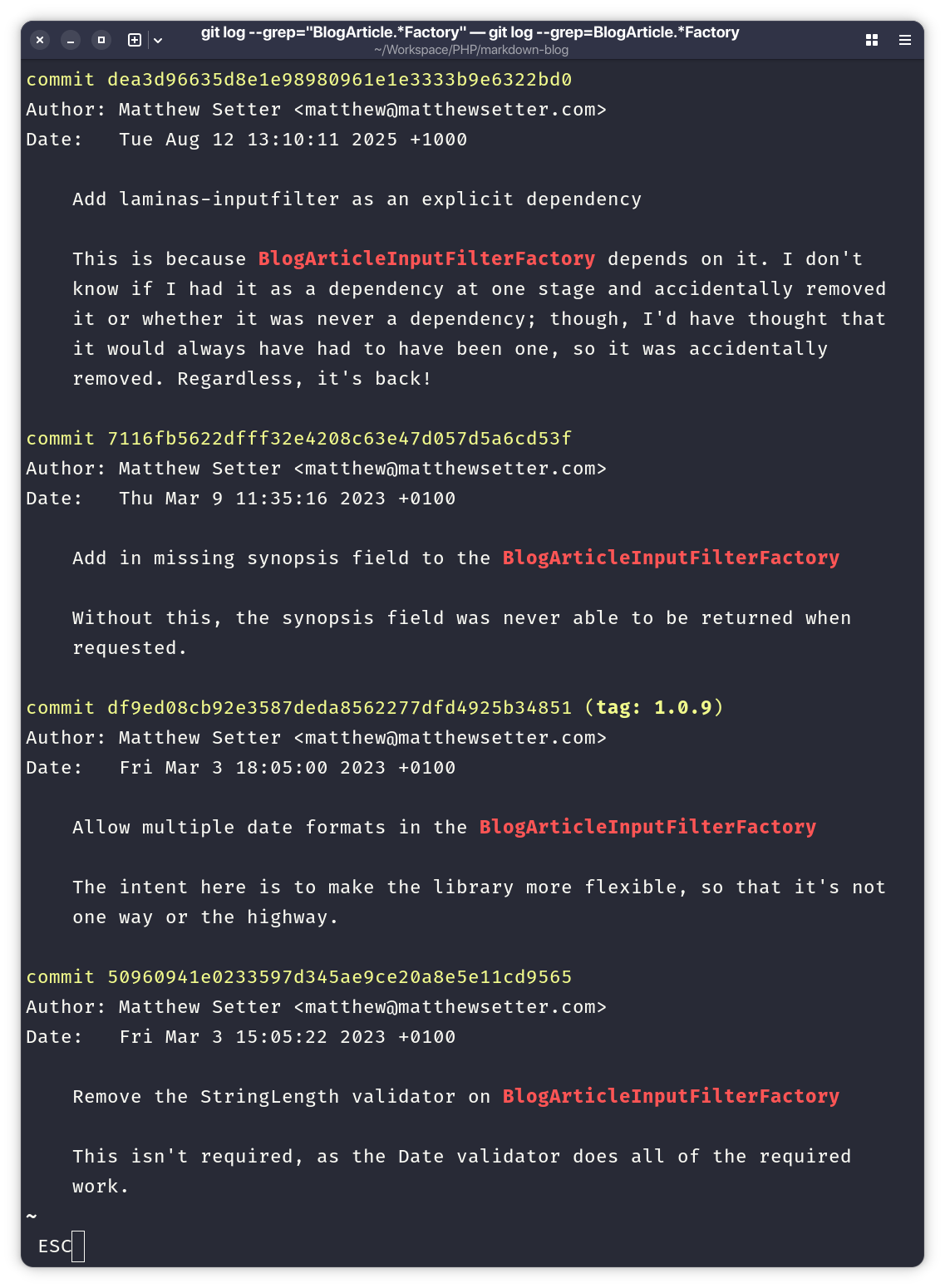
For example, let's say that I had the vague idea that the change which I'm trying to find did something with a class named Blog or BlogArticle, or started with Blog but ended with Factory.
However,I have no idea when I might have made that change, nor of the files that might be involved.
In that case, I could use one of the following combinations:
git log --grep="Blog"
git log --grep="BlogArticle.*"
git log --grep="BlogArticle.*Factory"
You can see, in the screenshot below, that the git log output is then limited to the commits that contain that expression, and that the match is highlighted.
If you're new to Grep, or want to build your skills, check out the Grep cheat sheet from opensource.com as well as the earlier link.
6. Print a list of the files affected by the commit
Option Syntax: --name-status
This option:
Show only the name(s) and status of each changed file.
By default, git log's output tells you a lot about each commit, but it never shows you the files affected by the commit.
To see that information, you need to pass either the --name-status option, or its compliment --name-only.
M test/Unit/Items/Adapter/ItemListerFilesystemTest.php
These options include a list of one or more files at the end of a commit's output, as you can see above.
The difference between the two options is that --name-status prints a character at the start before the file name showing the status change for the file.
These are:
- A when the file is added
- C when the file is copied
- D when it's deleted
- M when it's modified
- R when it's renamed; and so on.
Check out the documentation for the --diff-filter option for full details.
Bonus: Show the introduced patch
Option Syntax: -p
Now, I'd be remiss in writing a list of git log options, without including this one. As, while it's great to search through and/or filter down commits, all of the options presented so far don't show you the change (or patch) that any of the available commits introduced.
So, enter the -p, -u, and --patch options.
These options adds the change diff for the commit to the displayed information, as in the example output below.
There, after the commit message, you can see the diff.
commit 5aebf4c0959ea1b5b9be5d5de3212dc344954e58
Author: Matthew Setter <matthew@matthewsetter.com>
Date:   Fri Nov 21 22:20:04 2025 +1000

    Fix up the default path configuration

    This change fixes the original configuration so that it points at the
    correct directory path, when installed in a Mezzio application.

diff --git a/src/ConfigProvider.php b/src/ConfigProvider.php
index d576ca5..06e6702 100644
--- a/src/ConfigProvider.php
+++ b/src/ConfigProvider.php
@@ -41,6 +41,7 @@ final class ConfigProvider
     public function __invoke(): array
     {
         return [
+            // The default blog configuration
             'blog'         => $this->getBlogConfig(),
             'dependencies' => $this->getDependencies(),
             'routes'       => $this->getRoutes(),
@@ -147,7 +148,7 @@ final class ConfigProvider
              * files from. This directory needs to be manually initialised before it
              * can be used.
              */
-            'path' => __DIR__ . '/../../../' . $path,
+            'path' => __DIR__ . '/../../' . $path,

             /**
              * 'parser' is the class to use to parse the Markdown file's YAML front-matter.
You can see that the diff output, while similar to git diff, is a bit different. You can find the full details in the documentation under "GENERATING PATCH TEXT WITH -P".
Those are 6 Git log options I regularly use
Yes, there are numerous other options that you can use with git log, and you can pass them both individually and in certain combinations together, to filter down the output from git log to be just what you need it to be.
However, these seven options are the ones that I use most often when working with Git Log. They help me both filter and search through Git Log's output, regardless of the repository's size and age. And, yes, for me, they make using git on the command line far faster, easier, and more efficient than using a Git GUI, even ones as powerful and refined as Sourcetree and Tower.
If you're wanting to get going with git log on the command line, have a play with these six options (plus the bonus one) and see how they reduce the time that you take to work with your Git history.
Otherwise, what options do you regularly use? Let me know on Bluesky or LinkedIn.