 Are you tired of hearing how "simple" it is to deploy apps with Docker Compose, because your experience is more one of frustration? Have you read countless blog posts and forum threads that promised to teach you how to deploy apps with Docker Compose, only for one or more essential steps to be missing, outdated, or broken?
Recently, I accidentally committed a screenshot to a new (rather small) Git repository — a screenshot that included an account credential, plain for all to see. 😞 Consequently, I was concerned that if I pushed the local repository to a remote repository, such as GitHub, that someone might, eventually, find the image and discover the credential. Naturally, if that ever happened, there was the possibility that they could compromise my account.
So, I considered the potential courses of action in front of me:
- I could rotate the credential, making the one in the screenshot invalid
- I could delete and recreate the local repository, as I had not, yet, pushed it to the remote; or
- I could replace the image in the local repository with a redacted version, and continue on making commits
The third option was most appealing, as it required the least amount of effort, helped by the fact that the image was only added in the most recent commit. To redact it, I started off by resetting (undoing) the most recent commit, using the following command:
git reset HEAD~
Then, I replaced the image with a redacted version and committed it.
However, shortly after I did so, I remembered the expression:
Nothing is ever really gone in Git
Even when you undo commits, as I just had, it's often possible to still find them later on. It was at this point, that I remembered using tools such as Git BFG Repo-Cleaner in the past to fix problems like this. If you're not familiar with it, it:
Removes large or troublesome blobs like git-filter-branch does, but faster.
In short, you tell it what you want to remove from your Git repository, and it works right the way back to the start of the repository's history (if necessary) removing references to what you need taken out - permanently.
Why learn Git Reflog?
This brings me to Git Reflog, because I thought that, this time, instead of using tools such as Git BFG, that it was a good opportunity to dive deeper into Git and learn about its lower-level commands.
If you're not familiar with Git outside of the standard commands, such as log, show, diff, and commit, etc, Git is split up in to two parts (plumbing and porcelain):
- Plumbing: These are subcommands that do low-level work and were designed to be chained together UNIX-style or called from scripts. They give you access to the inner workings of Git. Many of these commands aren’t meant to be used manually on the command line, but rather to be used as building blocks for new tools and custom scripts.
- Porcelain: These are the more user-friendly commands that you are likely already familiar with, such as log, show, diff, and commit.
I think that it's fair to say that you can use Git for years without ever using a lower-level command. And, if you did, you wouldn't be missing out; I think.
Well, okay I've been using Git for nearly 20 years and don't think that I've missed out on anything. I might change this opinion over the coming months, so I'll update this post as and when my opinion changes. In the meantime, if you haven't used any Git plumbing commands, don't feel bad. Instead, let's learn together. 😊
What is Git Reflog?
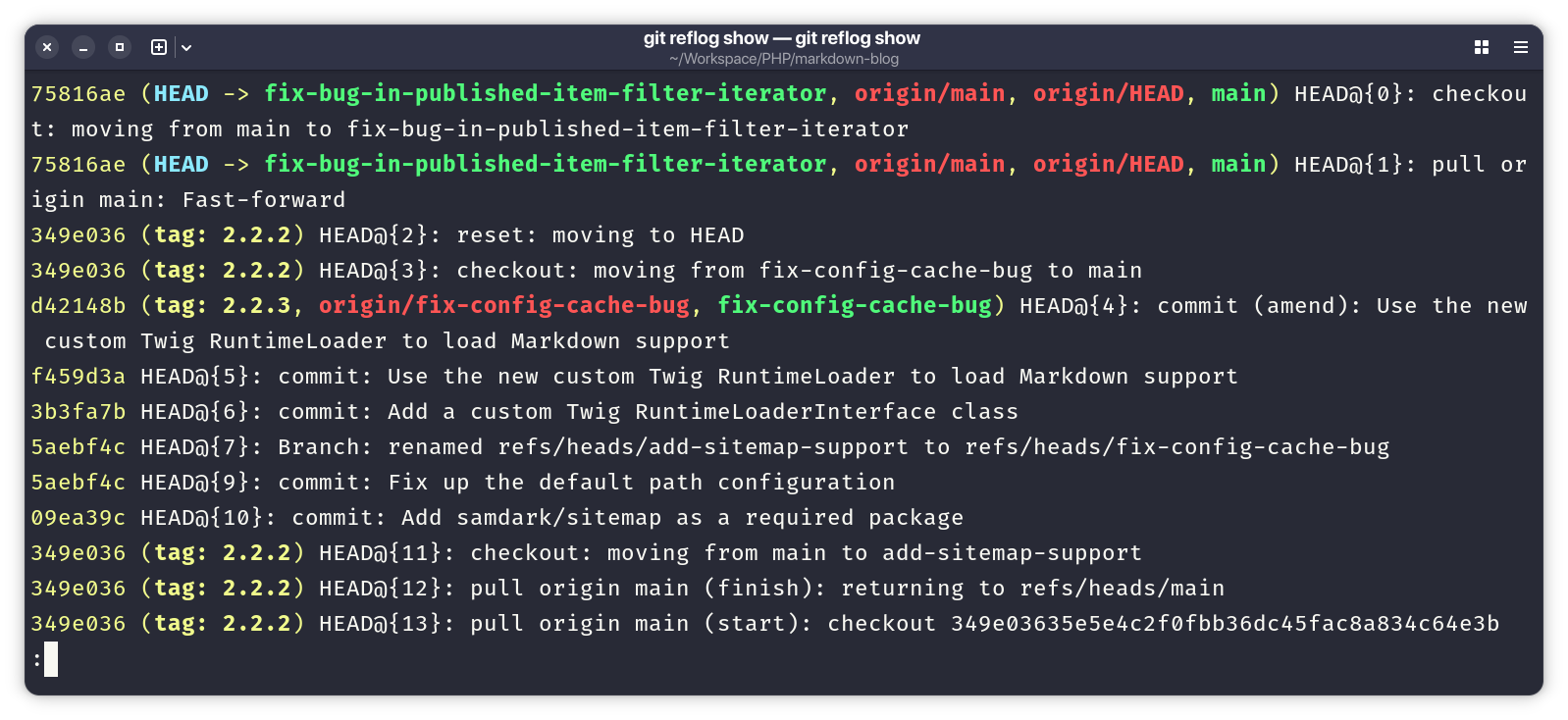
So, here's how the documentation describes the command:
This command manages the information recorded in the reflogs. Reference logs, or "reflogs", record when the tips of branches and other references were updated in the local repository. Reflogs are useful in various Git commands, to specify the old value of a reference. For example, HEAD@{2} means "where HEAD used to be two moves ago", master@{one.week.ago} means "where master used to point to one week ago in this local repository", and so on.
If you'd like to dive deep into the details of references check out the internals documentation.
In short (or said in my own words), Git Reflog tracks activity within a Git repository to a high degree of detail. Git Log shows you a lot of things that you've done in your Git repository. But, Git Reflog shows you everything.
If you had more than a cursory look at the screenshot above, you'd see that it tracks checking out branches, making commits, pulling changes from a remote, renaming a branch, and amending a commit (likely performed during an interactive rebase session). If you read it from bottom to top, you'd see all of your movements within the Git repo, and Git Log output would likely make so much more sense.
Anyway, I digress. Git Reflog is what allows you to dig up old commits that Git Log would otherwise not know about. Given that, anyone knowing how to use it and curious enough to look, could, theoretically, find the image that I'd originally committed to the repository. So, to remove it, I needed to update the reflog.
What do git references look like?
There's nothing special about them. They're just text files.
You can see them (they're kept for only 90 days, by default) in any Git repository you have on your local development machine by looking in its .git/refs directory.
For example, here's what the directory currently looks like in the sample repository which I created for this post:
tree .git/refs

.git/refs
├── heads
│   └── main
└── tags
If I looked in .git/refs/heads/main, I'd see 9b2d11c90f05aef3868b5c4100ee1026b40c69b4.
This is the full SHA1 hash of the current tip of the "main" branch.
I could then run git show 9b2d11c90f05aef3868b5c4100ee1026b40c69b4 to view the commit's contents, which look as follows:
commit 9b2d11c90f05aef3868b5c4100ee1026b40c69b4 (HEAD -> main)
Author: Matthew Setter <matthew@matthewsetter.com>
Date:   Tue Jun 9 20:50:44 2026 +1000

    Amended image

diff --git a/public/images/git-reflog.png b/public/images/git-reflog.png
new file mode 100644
index 0000000..94b5371
Binary files /dev/null and b/public/images/git-reflog.png differ
What can you do with the reflog command?
This is, perhaps, quite helpful before stepping through how to I used it to remove the image.
If you run git help reflog to display the commands help documentation, you'll see the following near the top of the output:
SYNOPSIS
       git reflog [show] [<log-options>] [<ref>]
       git reflog list
       git reflog exists <ref>
       git reflog write <ref> <old-oid> <new-oid> <message>
       git reflog delete [--rewrite] [--updateref]
               [--dry-run | -n] [--verbose] <ref>@{<specifier>}...
       git reflog drop [--all [--single-worktree] | <refs>...]
       git reflog expire [--expire=<time>] [--expire-unreachable=<time>]
               [--rewrite] [--updateref] [--stale-fix]
               [--dry-run | -n] [--verbose] [--all [--single-worktree] | <refs>...]
Here's what the commands do:
- show: (it's also the default) shows the log of the reference provided in the command-line (or HEAD, by default)
- list: lists all refs which have a corresponding reflog
- exists: checks whether a ref has a reflog
- write: writes a single entry to the reflog of a given reference
- delete: deletes single entries from the reflog, but not the reflog itself
- drop: completely removes the reflog for the specified references
- expire: prunes older reflog entries
With them, you can manage everything about your local repository's ref log entries.
How (exactly) did I remove the image?
From reading through the documentation, it seemed that the course of action I needed to take was as follows:
- View the reflog entries, so that I could find the one(s) that I needed to remove
- Drop the relevant entries
For the purposes of a simplistic example, and because I'm writing this after fixing up the original repository, the examples that you'll see for the remainder of this post are centered around a sample repository.
To view the reflog entries, you run:
git reflog
This displays terminal output similar to the following:
9b2d11c (HEAD -> main) HEAD@{0}: commit: Amended image
1b9ac08 HEAD@{1}: reset: moving to HEAD~
ddfa0da HEAD@{2}: commit: Add an image to the repository
1b9ac08 HEAD@{3}: commit (initial): First commit to the repository
You can see the commit where the image was originally introduced to the repository (ddfa0da / HEAD@{2}), where I reset the commit in (1b9ac08 / HEAD@{1}), and where I amended the image in (9b2d11c / HEAD@{0}).
Now, contrast this with the output from Git log, below, which you might be far more familiar with.
9b2d11c (HEAD -> main) Amended image
1b9ac08 First commit to the repository
It shows only two commits. So, if Git log was all you used to view a repository's history, you could be forgiven for thinking that the situation had been corrected — when it hadn't.
If you wanted to be sure, you could view the commit that introduced the image as follows:
git show HEAD@{2}
That command would print output similar to the following to the terminal:
commit ddfa0da70554a4fde78da920376ecc104491a97b
Author: Matthew Setter <matthew@matthewsetter.com>
Date:   Tue Jun 9 20:37:48 2026 +1000

    Add an image to the repository

diff --git a/public/images/git-reflog.png b/public/images/git-reflog.png
new file mode 100644
index 0000000..34fef22
Binary files /dev/null and b/public/images/git-reflog.png differ
You can see that, despite git log not showing the commit any longer, it's still there.
How would you recover the image with git reflog?
If you wanted to recover the image, you'd only need to do two things.
First, you'd first checkout ddfa0da, putting the repository in a detached HEAD state:
git checkout ddfa0da
Second, you'd create a new branch at that commit:
git checkout -b recover-deleted-image
Now, you would have access to the original, unredacted image.
How would you permanently remove the commit with git reflog?
So, assuming that you'd not recovered the original, deleted, commit and created a series of new reflog entries, here's how you'd permanently delete the original commit.
First, you'd test deleting the original commit with reflog (it always helps to check, first):
git reflog delete --dry-run --verbose --updateref HEAD@{2}
Here's what the three options passed to the command do:
- --dry-run: Do not actually prune any entries; just show what would have been pruned.
- --verbose: Print extra information on screen.
- --updateref: Update the reference to the value of the top reflog entry (i.e. @{0}) if the previous top entry was pruned.
And, here's what the command might print to the terminal:
keep commit (initial): First commit to the repository
would prune commit: Add an image to the repository
keep reset: moving to HEAD~
keep commit: Amended image
You can see that it would prune (remove) the required commit.
As that's what's required, you'd re-run the command without the --dry-run argument and remove the commit.
Then, you'd run git reflog again to confirm that the commit was successfully removed:
9b2d11c (HEAD -> main) HEAD@{0}: commit: Amended image
1b9ac08 HEAD@{1}: commit (initial): First commit to the repository
That's git reflog and how to get started with it
While there's a lot more that you can learn about the reflog command, and what Git's reference log is, I hope that this introduction to it has given you a taste for it, and encouraged you to learn more.
If you've been using it for some time, what go you started, and how do you use it?