 Are you tired of hearing how "simple" it is to deploy apps with Docker Compose, because your experience is more one of frustration? Have you read countless blog posts and forum threads that promised to teach you how to deploy apps with Docker Compose, only for one or more essential steps to be missing, outdated, or broken?
I’m an avid Git command-line user, and have been for over 10 years!
However, recently I’ve been experimenting with some of the GUI tools available for Git; if only for two reasons. To see :
- If I’m missing out on anything
- How the experience differs from the command line
The GUI that I’m currently playing with is Git Tower, recommended to me by my wonderful colleague Dylan Frankcom.
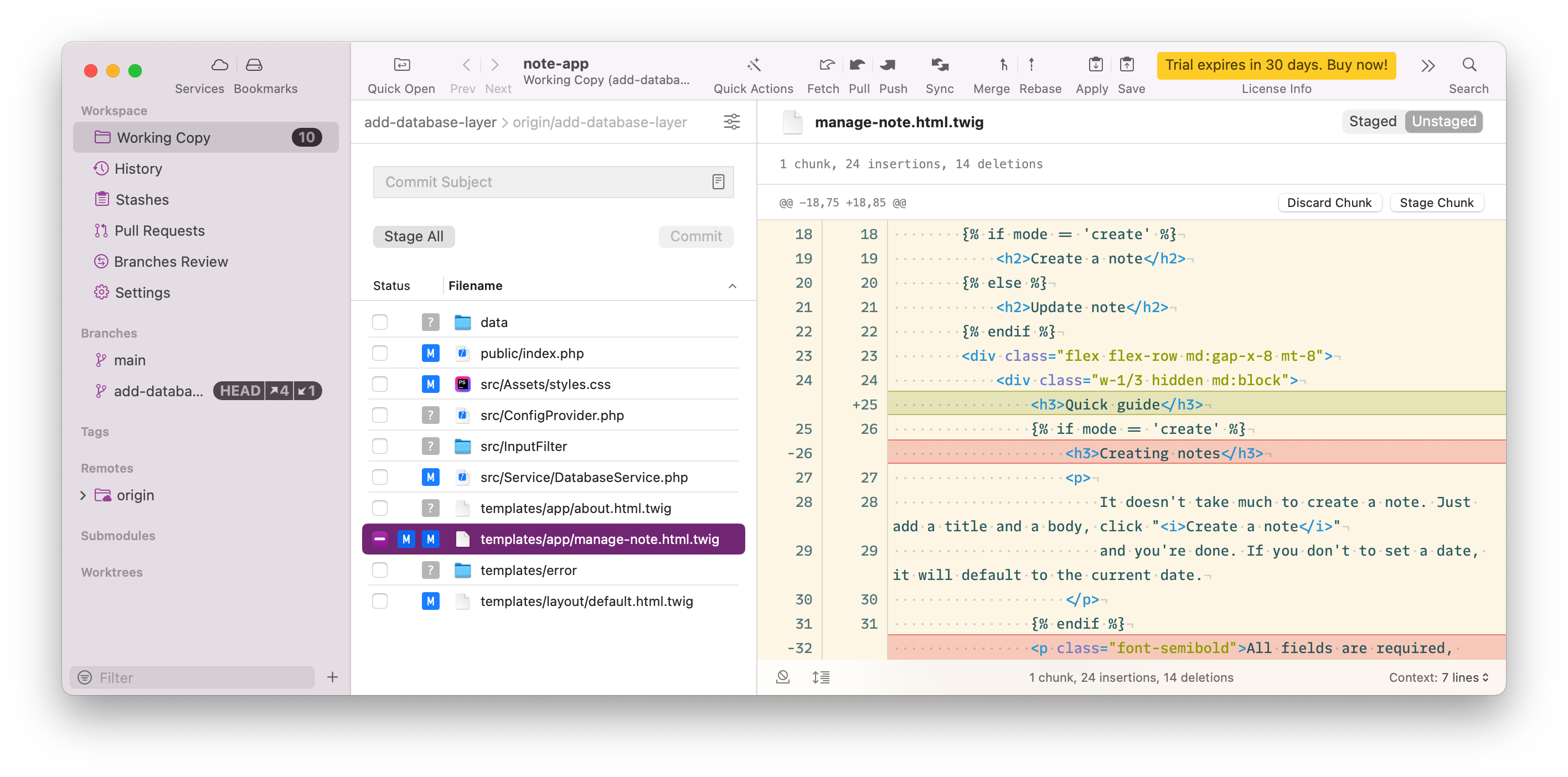
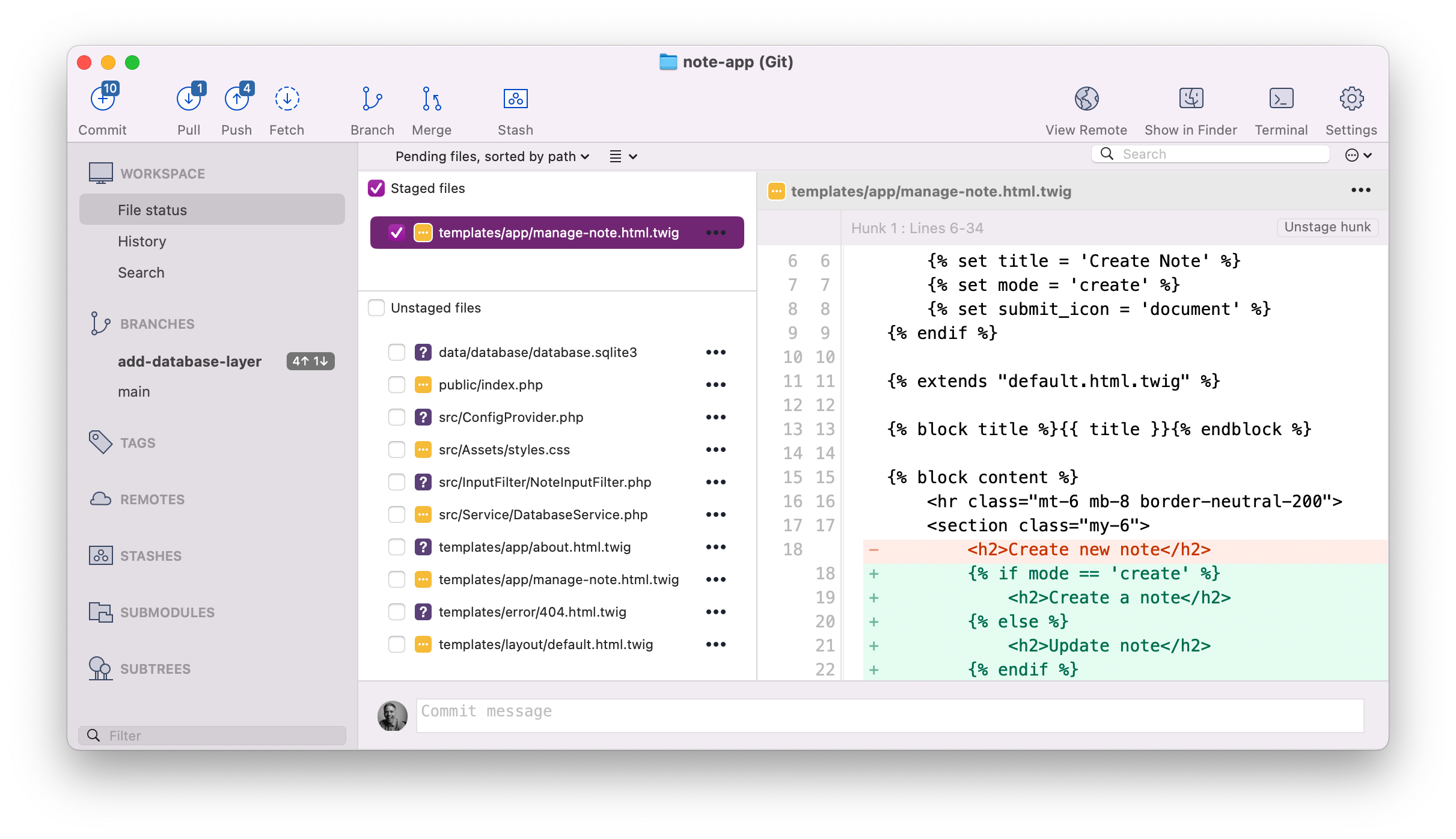
If you’ve not used it before, take a quick look at the screenshot above. You can see that it’s extremely full-featured, sporting all of the functionality that you’d likely expect a Git GUI to have, and laid out as you would likely expect.
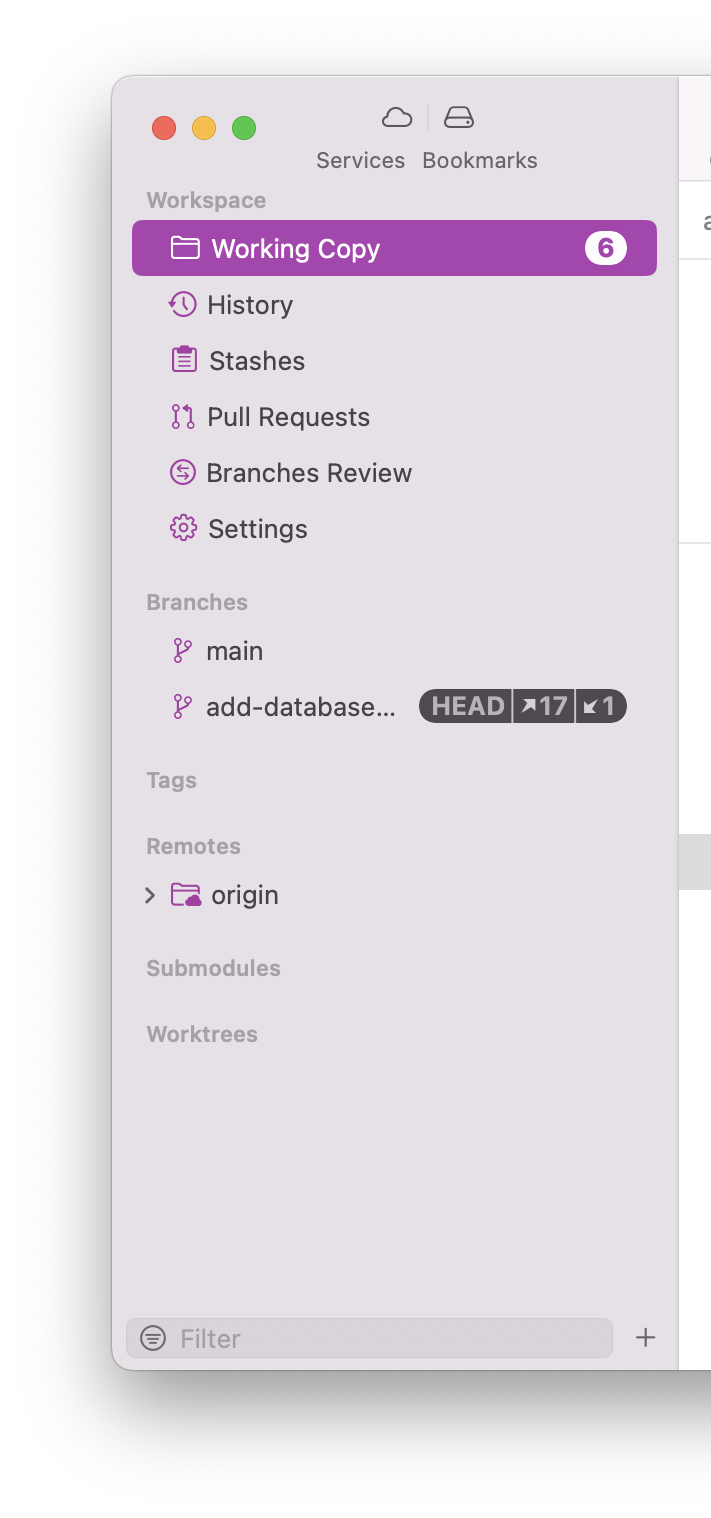
Down the left-hand side, there are links to a repository’s local working copy, history, stashes, local branches, remotes, tags, and more. Clicking on any one of them centers the UI on that context.
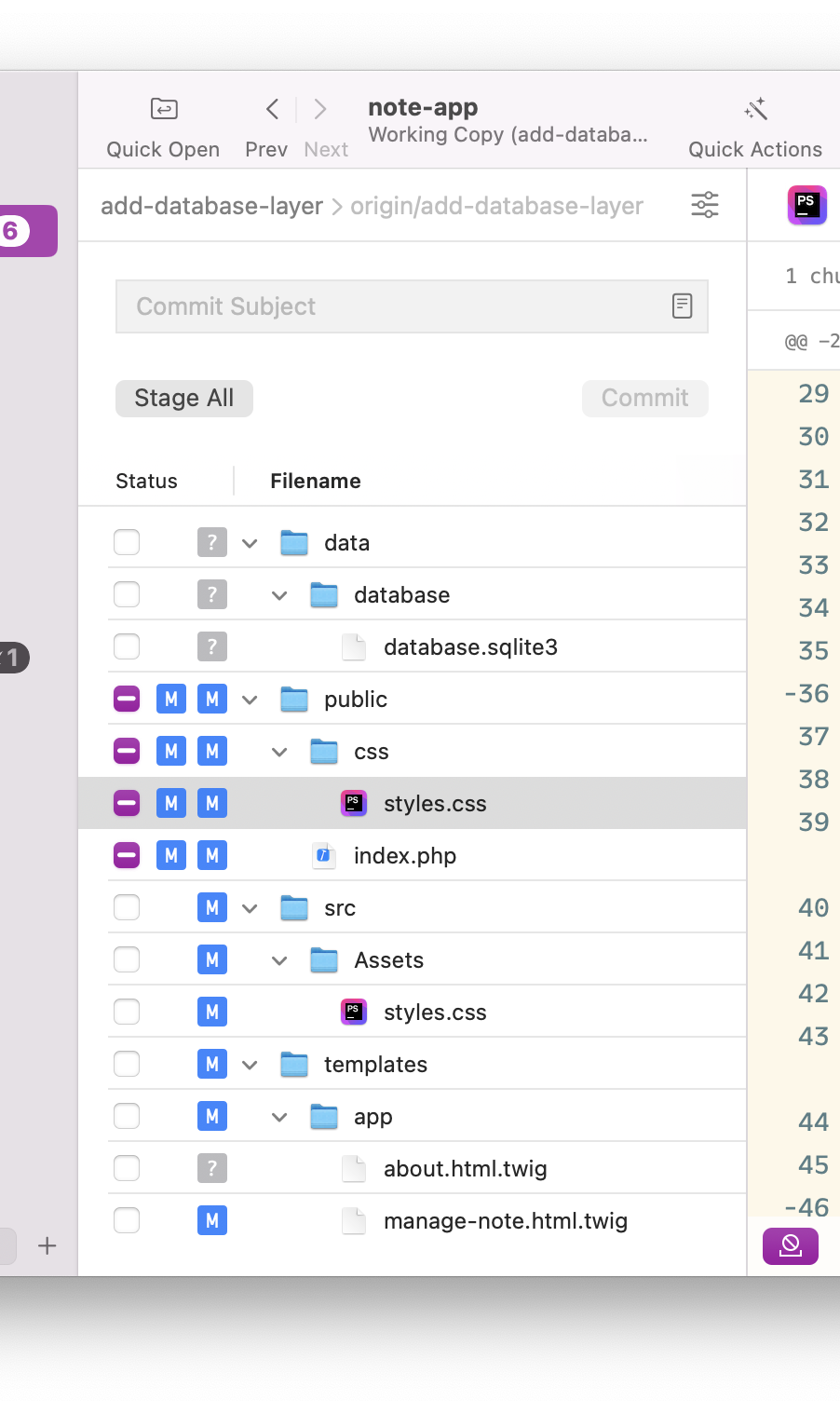
In the middle column, you can see the form where you write commit messages, and underneath it the changes made in the local working copy. I have to give Tower credit for this aspect, as it does a solid job of concisely displaying a lot of contextual information without overwhelming you. For example, it tracked files, untracked files, modified files, staged files, etc.
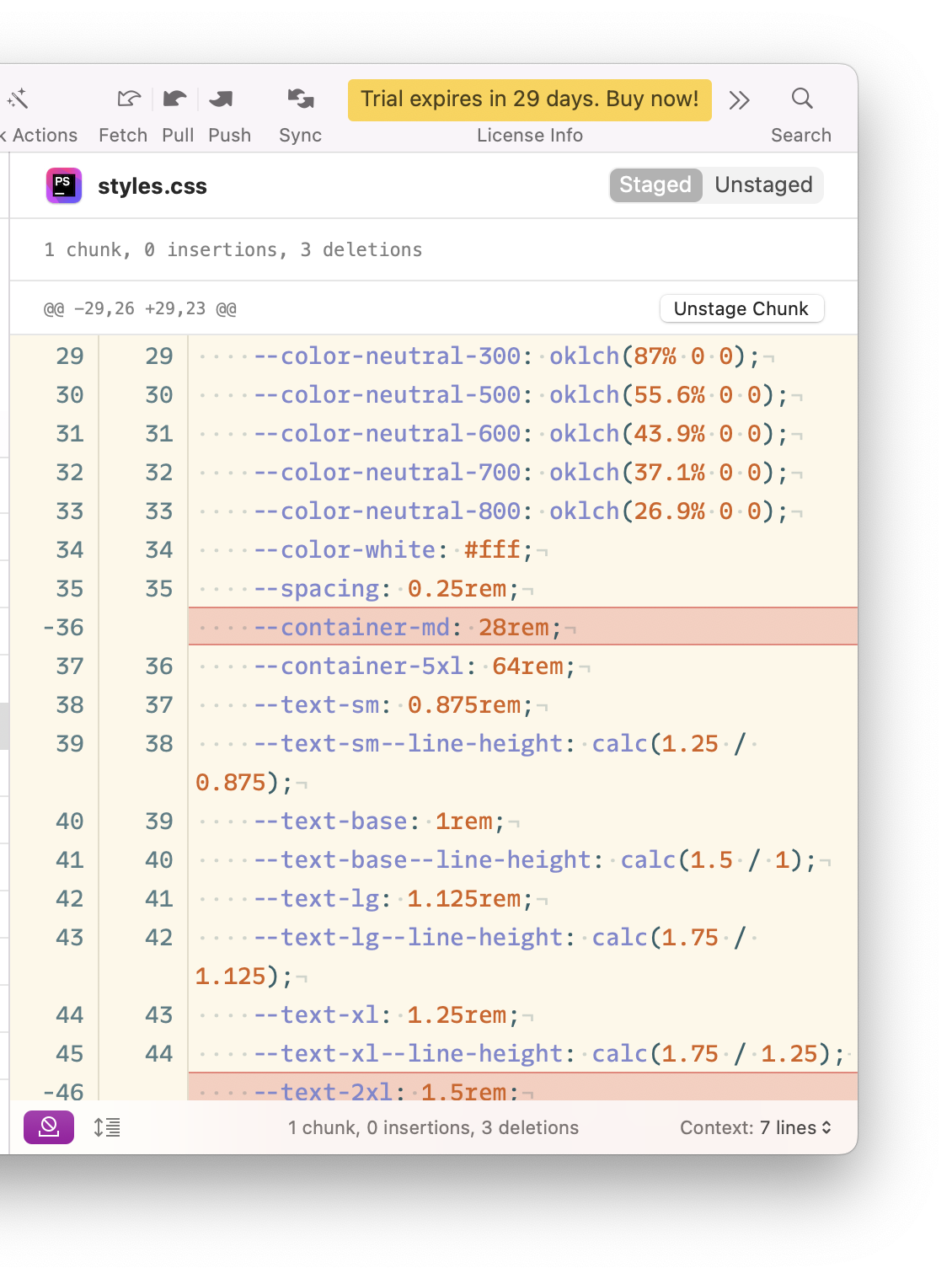
Then, over in the right hand column, if you've clicked on a file that’s being tracked, you can see:
- Its name
- A diff of the current changes
- A synopsis of the changes that have been made to it
- Buttons for staging and discarding changes
There’s more functionality available, but I’ll leave you to explore it.
However, there’s also something a little strange about how Tower’s been designed, which is the core of this article.
How do you view a file’s staged changes, when only some of a files changes have been staged?
Perhaps I missed it because I’m so new to the app.
Or, perhaps it’s because Sourcetree is the main Git GUI that I’ve used over the last 10-odd years.
Because of that, maybe I’m expecting all other Git GUIs to be laid out in a (very) similar way.
If you’ve never used Sourcetree before, take a look at the screenshot above. You can see that its UI looks similar to Tower, having a three column layout. The key difference is that it lists the staged files above the unstaged files. That way, it’s immediately obvious how to find them. No searching required.
To view the staged changes for a tracked file, all you need to do is click on it and the changes are displayed in the right-hand column (regardless of whether you’ve staged some or all of them).

And the same functionality applies if you click multiple files too. The changes for each file are listed one after the other. All you need to do is scroll through them.
Now take another look at the Tower screenshot above and tell me where or how you’d find staged changes?
I don’t know about you, but it’s not all that obvious, at first.
That was where I found myself earlier today. I didn’t see anything obvious in the UI. I looked in the available menu options, but nothing stood out.
Finally, I searched through the relevant documentation. While well-structured and well-written, it seems to cover everything else about staged changes but how to view them.
Perhaps you already know how to view staged changes in Tower. Perhaps you spotted how to do so. If not, here’s how.
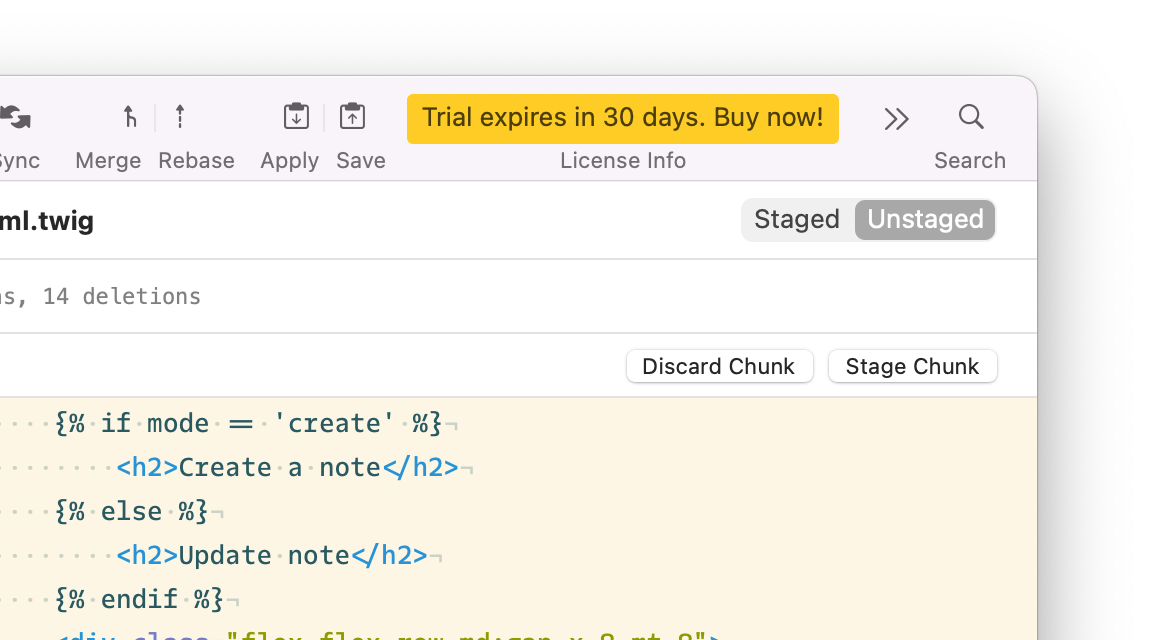
After you’ve clicked on a file with staged changes, you’ll find two buttons above the file's diff at the top of the right-hand column labeled Staged and Unstaged. Clicking Staged shows a diff of file’s staged changes.
"What’s so hard about that?" I hear you ask. Well, two things:
- I’m sure the button didn't respond the first few times I clicked it
- The only visual cue to attract your eye to the buttons is that the (small) Staged button becomes active if you click on a tracked file that has staged changes
I have pretty decent eye sight and this change went almost completely unnoticed. To be fair, after getting used to it, it’s slowly starting to make sense. But only slowly!
It still seems like a bit of an odd UX (user experience) choice. I’m wondering how people with vision issues or disabilities might fare.
But, okay, I’ll give it the benefit of the doubt and say that Tower’s design approach has a series of benefits over other GIT GUIs, such as Sourcetree:
- By combining the way staged and unstaged changes are viewed into the same UI component there is less for the user to focus on (and potentially be distracted by)
- More of the UI can be dedicated to other functionality, such as the commit component above the local working copy view
- It is likely easier and more efficient to maintain the application, as one view or component renders the same functionality, distinguished only by whether it’s dislaying staged or unstaged changes
Despite this critique, I feel that after my Tower trial is over I’ll be a strong advocate of it for those looking for a GIT GUI. But this UX design choice still seems strange.
To add emphasis to this feeling, here’s how to view the local working copy, of the project used in the earlier screenshots, on the command line:
➜  note-app git:(add-database-layer) ✗ git status
On branch add-database-layer
Your branch and 'origin/add-database-layer' have diverged,
and have 4 and 1 different commits each, respectively.
  (use "git pull" if you want to integrate the remote branch with yours)

Changes to be committed:
  (use "git restore --staged <file>..." to unstage)
    modified:   templates/app/manage-note.html.twig

Changes not staged for commit:
  (use "git add <file>..." to update what will be committed)
  (use "git restore <file>..." to discard changes in working directory)
    modified:   public/index.php
    modified:   src/Assets/styles.css
    modified:   src/Service/DatabaseService.php
    modified:   templates/app/manage-note.html.twig
    modified:   templates/layout/default.html.twig

Untracked files:
  (use "git add <file>..." to include in what will be committed)
    data/
    src/ConfigProvider.php
    src/InputFilter/
    templates/app/about.html.twig
    templates/error/
Scanning through the output, you can see that templates/app/manage-note.html.twig has both staged and unstaged changes. To view the staged changes, you’d run the following command:
git diff --cached
It would have written the following to the terminal:
diff --git a/templates/app/manage-note.html.twig b/templates/app/manage-note.html.twig
index e0dcc42..e6a39e6 100644
--- a/templates/app/manage-note.html.twig
+++ b/templates/app/manage-note.html.twig
@@ -15,7 +15,11 @@
 {% block content %}
     <hr class="mt-6 mb-8 border-neutral-200">
     <section class="my-6">
-        <h2>Create new note</h2>
+        {% if mode == 'create' %}
+            <h2>Create a note</h2>
+        {% else %}
+            <h2>Update note</h2>
+        {% endif %}
         <div class="flex flex-row md:gap-x-8 mt-8">
             <div class="w-1/3 hidden md:block">
                 {% if mode == 'create' %}
Sure, it’s not as nicely formatted as Tower, and you have to run commands and parse through the terminal output. But git status is a top-level Git command, one mentioned in most Git cheat sheets that I’ve come across – even Tower’s! So, I’m curious as to why it’s not more obvious or readily available.
It’s made somewhat stranger when you consider what happens when you’ve selected two or more files with staged changes. As you can see in the screenshot above, there seems to be no way of viewing staged changes. All you can seem to do is either discard local changes or delete the files. While these two actions make sense in context, they’re not the only contextually logical actions a user could expect.
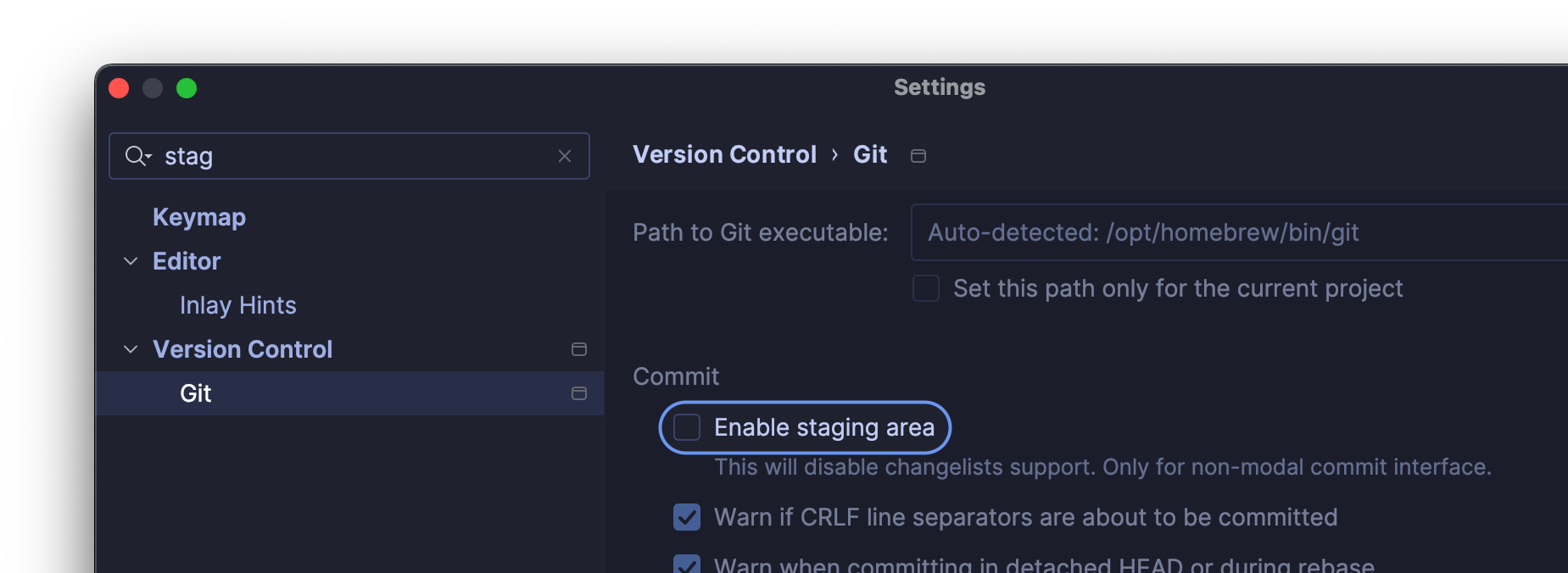
To be fair, before you can view staged changes in PhpStorm, you have to enable the staging area. To do that, in PhpStorm’s settings, first navigate to Version Control > Git. Then, in the Commit section, check Enable staging area.
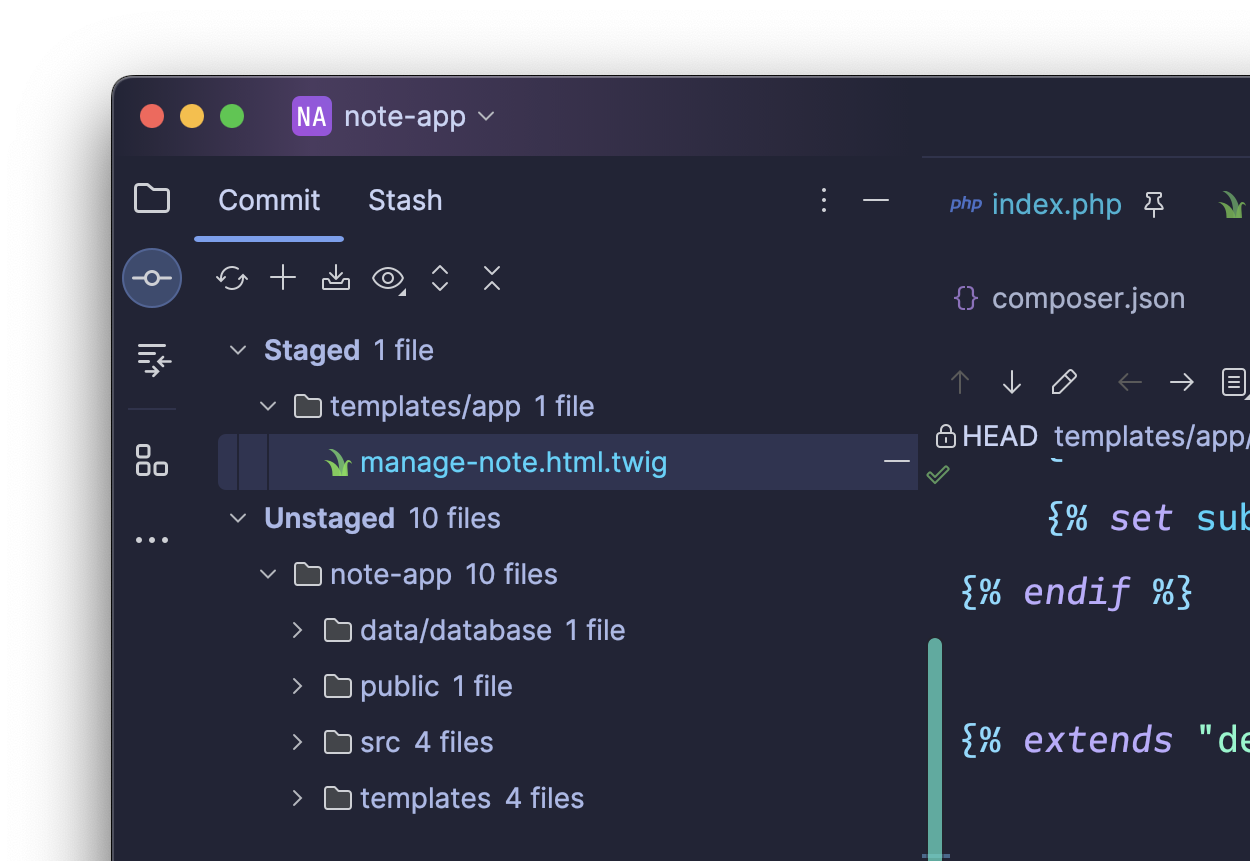
After that, the staged files become visible in the Commit tool. Now that (without looking into the reasons for it) is truly odd.
That’s my experience viewing staged changes in Git Tower
While this has been somewhat of a pointed critique, it’s not meant to trash Tower. Rather, it’s just pointing out what I find to be an odd design choice. If you’re looking for a professional Git GUI, I definitely recommend taking a 30-day trial. Just keep this point in mind.